Thursday, March 16, 2017

IPhone 8: Curved display - but not like Galaxy S7 Edge
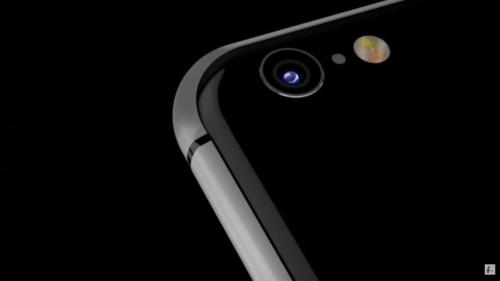
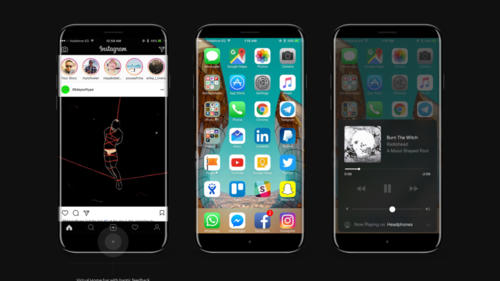
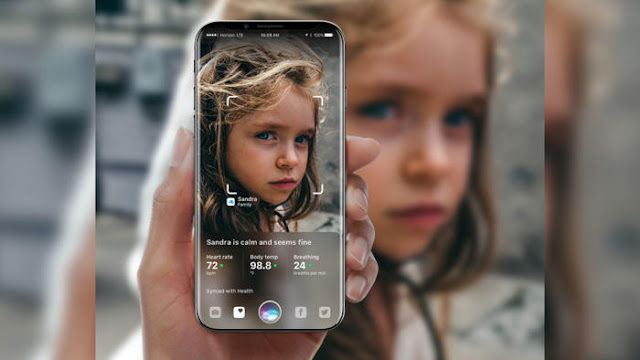
The iPhone 8 is to get a bent OLED display, but only to a small extent. Anyone hoping for a similarly large curvature, as Samsung uses it for its Galaxy S7 Edge, should be disappointed. Anyway, the Curved screen of the iPhone 8 is more likely to serve aesthetics, new controls are not expected.
IPhone 8: Curved display

Is the iPhone 8 now a curved screen or not? At least the Japanese side Nikkei Asian Review expects a curved display for the anniversary iPhone, reports MacRumors. The curvature will be significantly lower than the Galaxy S7 Edge. In any case, it is a challenge to produce such a curved glass. The visible area of ​​the iPhone is supposed to be 5.2 inches, but "no new significant functions" offer, the unspecified source is cited.

IPhone 8: Flat display uses "OLED not optimal"

The messages about the installed panel in the iPhone 8, however, differ slightly from each other. The market analysis company IHS Markit expects a conventional flat design. The well-known Apple analyst Ming-Chi Kuo is in the same direction, he also reckons with a so-called 2.5D glass, which Apple since the iPhone 6. But: A slightly curved display might correspond to this assumption. Apple would "use OLED not optimally", if only a conventional and thus flat screen would be installed, the insider continues to report. The design is not yet final and could change until the release.

Together with the iPhone 7s and the iPhone 7s Plus, the iPhone 8, also as an iPhone edition in conversation, should be presented on the traditional September keynote. However, industry observers expect a later appearance for the iPhone 8 with a later appearance than for the S-models - possibly only towards the end of the year at a price of more than 1000 US dollars.

Wednesday, March 15, 2017

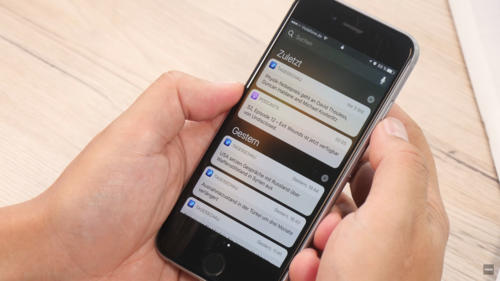
This will give you the iPhone notifications under control
You missed once again important notifications on your iPhone because they Flash again disappeared after accidental release of smartphones? With the right settings, you can prevent that. Here you'll learn all you need to know about the notifications on the iPhone.
iPhone notifications under control

First of all, you must add important notifications to your message center so that they are displayed even if you have already unlocked your iPhone, whether or not you want it. This option can be found here: "Settings> Messages". Now select the apps for which notifications are displayed in the message center. Make sure that the "Allow messages" and "Show in message center" check boxes are activated. In the same way, it works when you do not want to display notifications of certain programs. So you can disable the notifications for rather unimportant apps, so as not to sink into chaos.

Set a notification style for your notifications

In the next step, you can now configure the hint style in the form of banners and hints. Banners are displayed at the top of the screen, but disappear after a short time without having to activate. Notes, however, remain intact and require an active action - the preferred option for particularly important notifications. Navigate to the following menu: "Settings> Messages".

Now select the application for which you want to define a different hint style. For this to happen, the "Allow messages" option must be activated. Below are the options for the hint style. Here you can choose between "None", "Banner" and "Note". Again, you should take the opportunity to clean up a bit. Select the desired app and select "None" as a hint to continue receiving notifications for the app, but not a bold note in banner form.

Notification sound: To disable it

No question: Important messages should be signaled by a corresponding notification tone. But: Is this actually the case with every app? Do you have to accept any unimportant action on Facebook with a sound on your iPhone? In many cases probably not. Therefore you should go into yourself and check which sounds can be switched off safely. In the "Settings" under "Messages" select the respective app, for which you want to deactivate the sound. This is done by deactivating the menu item "Sounds" by slider.

Badges: How to switch the indicator counter off

The small red circles about apps and folders, the so-called badges, are a fairly practical thing. If an app has new notifications or notices ready for you, the little icon informs you about it without having to open the app before. But in everyday life, this can quickly become confusing, especially in a multitude of applications, and sometimes end in chaos. The problem: The badges only disappear when the corresponding app is started and the notifications have been called. Unfortunately, the icons can not be deactivated completely, but you can still determine for each application whether these badges should be played or not.

By the way: Apple calls the feature in its settings indicator counter. At first glance, it is unlikely to be clear what exactly is behind this description. And so you can disable the badges: "Settings> Messages". Select the desired app for which you want to disable the hints, and deactivate the "Indicator counter" item.

Summary


  1. Define notifications for the message center: "Settings> Messages"
  2. Select the app you want and turn "Show in Message Center" on or off
  3. Set the note style: "Settings> Messages" and select the app
  4. Make sure "Allow messages" is turned on
  5. In the Note Style area, choose "None", "Banner", or "Note"
  6. Turn sound on notifications on and off: "Settings> Messages"
  7. Select the app and make your choice at the "Tones" point
  8. Disable Badges: Select "Settings> Messages" and the app
  9. Turn slider to uncheck the red badges

Tuesday, March 14, 2017

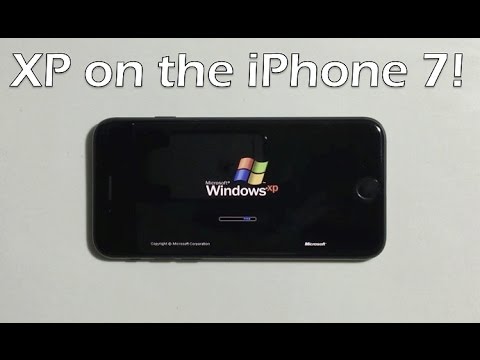
Windows-iPhone: Hackers brings to the iPhone 7 Windows XP
Recently also Windows XP - at least with an emulator running on the iPhone 7. In a YouTube video, a hacker demonstrated how to get the old PC operating system on the Apple Smartphone.

If you opt for an iPhone, you can automatically switch to the operating system iOS with all its advantages and disadvantages. But now there is a YouTube video showing how a hacker can run the ancient PC operating system Windows XP on a current iPhone 7 - and even use it with the touchscreen.

No hack but an emulator

However, this is not really a hack, but actually an emulator, which is installed on the iPhone and then runs Windows XP on the device. Remarkable is how well the emulator apparently functions and how the control of the mouse pointer was adapted to the touchscreen of the smartphone. This way the screen reacts like a trackpad: The pointer is moved by wiping and menus and folders can be opened by tapping.


Of course, the user friendliness remains modest overall. As usual with most emulators, it takes a feeling eternity to load the operating system on the iPhone and also the operation of the icons remains ultimately quite tricky. In the end, with Windows XP on the iPhone 7 but can not really do much. After all, the operating system was developed for completely different devices. Nevertheless, it is, of course, cool to see Windows XP on a smartphone.
But not curved? iPhone 8 could have flat display
Has the iPhone 8 but no curved display with curved edges? So far, most experts assumed that the future flagship of Apple in autumn, when the new iPhones come in terms of tightened round edges. Suddenly, it but looks like the iPhone 8 would once again have a flat display.
iPhone 8 could have flat display

So think about the analyst Wayne Lam by IHS, that Apple while an OLED display iPhone 8 will incorporate into the, which will be but flat: "we assume that Apple will use a design, that is similar to the current 2,5D-Glas", MacRumors cites the IHS investment advisors.

iPhone 8 display not curved - the fans are disappointed? 

For many Apple fans, it could be quite a disappointment, the iPhone manufacturer again dares not take the step the Samsung Samsung Galaxy S6 edge had already made two years with some success. Instead believes IHS analyst Wayne Lam, that Apple could focus more on LG: "more like the new LG G6 we assume that's a touch screen with a longer ratio could give the display area as a whole in relation to the overall size of the unit to grow. This new design language will be the trend for 2017, as also the Samsung devices could show at the end of the month."

Also Ming-Chi Kuo by KGI securities and TrendForce Chinese trend researchers believe that the upcoming iPhone 8 might have "only" a 2,5D-Glas on the front page, whose Kanten are indeed bent, where the curved effect fails but very low. So no major changes to the design of iPhone 6 and iPhone 6 plus, since 2014 already exist.

There are still although various sources such as the Wall Street Journal and IHS analyst Kevin Wang, who stated that the iPhone 8 has a screen which will be curved and round edges. But: Each of these sources has become their opinion changed, what to do can have so, that Apple has tested said a total of ten different prototypes. May be this device with round edges and others that are not curved.

Thursday, March 9, 2017

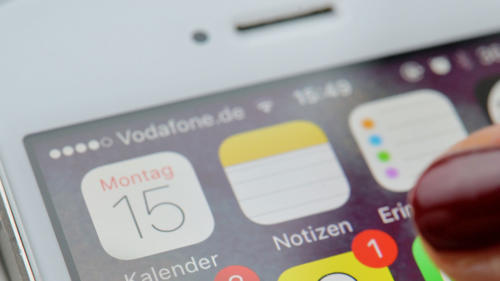
Recover deleted notes on the iPhone: How it works
Notes on the iPhone are a practical thing, after all, you can quickly create the shopping list or a to-do list. It is particularly annoying, therefore, if you accidentally removed an entry - but not afraid to restore deleted notes is not so difficult.
How it works

Restore text in a note

If you just deleted the text in a note, but the file itself is still open, you can easily restore the writing with a short shake of the smartphone - of course only if you have not deactivated the function. The feature is activated under "Settings> General> Auxiliary Aids" in the "Shake to revoke" item.

Recover deleted notes

If you have deleted a complete note for any reason, you can also undo this. With iOS, a kind of "paper basket" for deleted notes is installed as standard, in which the removed entries are still lifted for 30 days - similar to deleted photos in the photo book of the iPhones.

However, the notes tray, which allows you to restore deleted notes, is somewhat hidden in the Notes app. You have to tap the symbol with the arrow to the left in the top menu bar in the app. A folder overview appears in which the sub-item "Last deleted" should appear. Tap and then swipe left over the note you want to restore. Use the Move option to move the note back to the place of origin. The same process also works via the "Edit" item at the top right of the screen, which allows you to restore several deleted notes at a time.

If the deleted note has already disappeared from the recycle bin, you can restore it by an old iPhone backup.

Summary


  1. Deleted notes on the iPhone are not automatically lost, there are several ways to restore them
  2. If you have only deleted the text in a note, but the file itself still exists, the function "Shake to revoke" can be used
  3. The function is activated under "Settings> General> Operating aids"
  4. If you have deleted the entire note, you can also find the entry still 30 days in a kind of "paper basket" - this is however somewhat hidden
  5. Alternatively, deleted notes can also be restored via an iPhone backup
IPhone 8: Release clearly after iPhone 7s & iPhone 7s Plus?
The iPhone 8 is supposed to come under the name "iPhone Edition" in the trade. The release is insider information, however, according to the standard models iPhone 7s and iPhone 7s Plus.
IPhone 8: Release
The iPhone 8 could come with the name "iPhone Edition" on the market. (© AlHasan Husni 2017)

That the iPhone 8 this year will also come with this name in the trade is, of course, still by no means mattered. After the title "iPhone X" has finally been published, a report from the well-known Japanese Apple blog Mac Otakara according to MacRumors now brings the name "iPhone Edition" into play. Similar to the Apple Watch Edition, the name should also signal the iPhone's absolute luxury. The smartphone should therefore also crack the 1000-dollar mark.

IPhone 8: OLED screen still not secure?

The smartphone is supposed to be presented together with the iPhone 7s and the iPhone 7s Plus on a keynote in September, but the release of the iPhone Edition could be "clearly later". With the features for the iPhone 8 / iPhone Edition, Apple according to the report so far however still sway. Only so far a 5-inch screen, wireless charging and a dual camera are so far. For the 5 inch, Mac Otakara refers to the really usable display part, the complete screen is rumored to be 5.8 inches in size. The iPhone 8 or iPhone Edition will not be bigger than the iPhone 7 with 4.7 inches due to a nearly borderless design.

Otherwise, Apple is currently still many prototypes of the device circulating - some with physical home button, some with a pure software solution. Even with AMOLED and LCD screens are still experimenting. Quite so surely the feature does not seem to be so many rumors.