Wednesday, March 15, 2017

New chat app Supersonic Messenger turns off language Emojis
The new Supersonic Fun Voice Messenger chat app from Google turns language into text and emojis. With the application, words are displayed almost in real time as text and icons on the Android smartphone.
New chat app

Google's latest chat app Supersonic Fun Voice Messenger combines voice input with Emojis. To use the app, you must install it on the Android smartphone together with a conversation partner, press the microphone button and say its message. The words are then converted into text almost in real time. Words, which could be represented as emojis, are recognized by the app as such and appear as emojis on the display.


Up to now only in English

For example, in the sentence "Do you want to go out for coffee later?" The coffee as coffee cup Emoji represented. "Do you want" is supplemented by a thumb up and at the beginning of the question a waving hand appears, which is to draw attention to the question. So far the app supports only an English language input.


New Messenger comes from Area 120 team

The Supersonic Messenger was developed by Google's Area 120 team. With the Area 120 concept, Google responds to the problem that the best employees often leave the company to start their own company. Google grants each employee 20 percent of their working time to work on their own ideas. If they create a business plan, employees in Area 120 can apply. Whoever is accepted may build his product in the period of a few months. In the end, the teams can apply for financial support from Google and start their own business. The iOS app Uptime emerged recently.

Tuesday, March 7, 2017

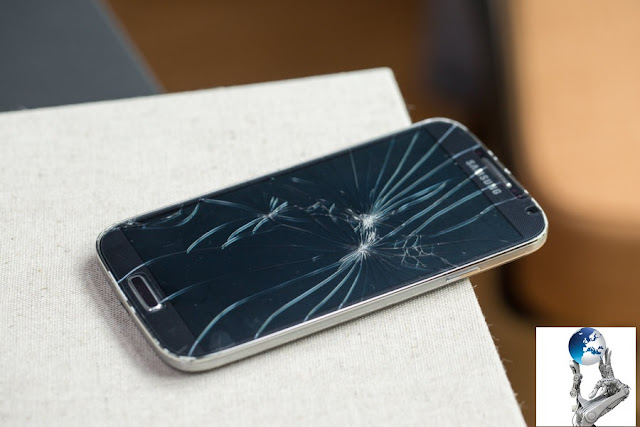
Android smartphone with broken display: How to unlock it
Once not watched and the Android smartphone crashes on the hard asphalt. An impact that the display may not survive. However, if the screen does not work, it does not mean the end of your data stored on the device. With our tips, you can unlock the smartphone even if the touch screen fails the service.
How to unlock it
With the right preparations, you can also access an Android smartphone with display damage (© 20017 TECHTECH)

Access via web tool

There are several methods to get access to an Android smartphone with broken display. However, you must take precautions for most of the solutions before your screen blesses the temporal. For the simplest method, you need a computer. Go to the "Android Device Manager" website and sign in with your Google account.

Join now your Android smartphone for the service. However, in most cases, your device is already registered automatically, so you do not need to take any further steps. If the GPS is enabled on the smartphone, it is detected by the web tool. Click on "Lock" and select "Unlock". Even with a broken display, you are able to gain access to the device. If you now connect it to the computer, you can transfer and back up all required data.

Display on computer display

A second method of accessing a smartphone with a broken display is remote control from a computer. However, a few steps are necessary for the setup, for which the smartphone must still be fully functional. In our example, we use "Vysor". The program can be downloaded free of charge from the Google Play Store for Android.

After the installation of "Vysor" you have to activate "USB Debugging" on your smartphone. Go to your "Settings" under "My device" and type the "Build version" seven times. This makes the developer options visible. Then follow the path "Settings | Developer Options | USB Debugging | On".

Download "Vysor" on the computer as an extension for the Google Chrome browser. Executes a search for devices in the application and selects your smartphone. Your Android device asks if you want to allow "USB Debugging". Activate the "Always Allow" check box and confirm with "Ok". As soon as the connection between the two devices is established, you confirm again with "Ok". Then you can unlock and control your smartphone from the PC - even if your display is broken. This requires a connection via USB, which then also allows the copying of data.

Many ways lead to the homescreen

Let us not forget that there are other possibilities. If your Android device does not have a lock code, you can connect a mouse via OTG cable, for example, and unblock the smartphone via this device with a click and a wipe movement to the right. There is also another comfortable remote software in the XDA-Entwicklerforum, which is, however, much more complicated to set up.

Summary:


  • To unlock an Android smartphone despite a broken display, you need to make preparations as long as the device is still working
  • You can use the "Android Device Manager" web tool to locate the smartphone and also to unlock it with the "Lock" button if GPS is activated on the device
  • Then you can connect the smartphone via USB to a computer and copy all important data
  • Set up a remote software such as "Vysor" to access your Android device and copy important data from the computer
  • For remote access, you may need to enable "USB Debugging" in the developer options
  • The corresponding menu is visible in the settings, if you under "My device" seven times on the entry "build version" tippt
  • Depending on the manufacturer of the Android smartphone, the exact names of the menu items may differ

Sunday, March 5, 2017

In iOS, Android and Windows Phone make a screenshot
Android and Windows Phone make a screenshot

You want to make a screenshot with your smartphone - so create a photo of the contents of the screen? This is no problem with the current operating systems and smartphone models. Both now under iOS as well as with Android and Windows Phone or Windows 10 Mobile the function is fixed.

Many people do not see the screenshot function until they are asked to send a screenshot to show a particular product from an online store. Screenshots are very easy to create with iOS, Android and Windows Phone / Windows 10 Mobile, but there are certain differences between the operating system variants.

Make a screenshot on the iPhone or any other iOS device

Taking a screenshot on iOS devices has been very easy for a long time. This also applies to the current iPhone 7, iPhone 7 Plus and the iPad Pro, as well as all other iOS devices. And so you can make a screenshot:


  1. You call up the screen from which you want to take the photo.
  2. Press the Power button and the Home button at the same time. The screen flickers briefly and you hear a click sound with switched - on sounds - the screenshot was made
  3. You can find the picture in the Photos app in the "Screen photos" or "All photos" section. From there you can share it and send it or continue to edit it.
In iOS, Android and Windows Phone make a screenshot


There are also other ways to make screenshots with the iPhone 7, for example via Assistive Touch. However, you must remember that a lot of screenshots can fill the tight memory of the smartphone and you should also delete the pictures, which you no longer need.

Screenshots in Windows Phone and Windows 10 Mobile

As with iOS, it's similar to the screenshots on a Windows Phone, ie the Lumia devices or other smartphones with the mobile operating system from Microsoft. On Windows Phone 8.1 and Windows 10 Mobile it works like this:

  1. Re-enter the screen to be photographed.
  2. Then press the power button and the volume button.
  3. The screen photo is now automatically saved in the screenshots section of the Photos Hub.
If your phone still runs Windows Phone 8, then you have to use the Windows button under the display instead of the Lauter button. That would be the combination of Windows plus Power.

Make a screenshot under Android - something more complicated

Under Android a screenshot to make is however already somewhat more complicated. This is mainly due to the fact that there is no uniform method. In the early days of Android it was even very complicated to make screenshots at all. This is why there are also some screenshot apps that are here to help.

Make a screenshot under Android

The official Google method to make screenshots in Android works like this:

  1. You reopen the screen you want to record.
  2. Hold down the power button and the quieter button for several seconds at the same time.
  3. The screen space is saved and a small screenshot symbol appears at the top of the screen. The picture itself is in the gallery.

So you can make screenshots with a Samsung device

In iOS, Android and Windows Phone make a screenshot

As far as the theory: For different large manufacturers such as Samsung it works quite different, even depending on the model different. The Samsung Galaxy series is like this:

  1. Display the corresponding screen.
  2. Press and hold the Power and Home buttons for about two seconds. The display flickers and there is a click sound.
  3. You can find the screenshot in the screenshots section in the photo folder.
The normal Google method described above is used for Samsung smartphones without a home button. On many Samsung devices, gestures can also be used, for example by stroking the display with the hand edge. Whether it works with your smartphone, you can check under "Settings> Movements and gestures".

Sony, HTC and LG: Here are some screenshots

In addition to the Google method, Sony also has its own option. This allows you to start the Active Clips app, which allows you to make a screen photo. Or you hold down the power button for about a second and then select "Take Screenshot" in the next window.

In iOS, Android and Windows Phone make a screenshot

The Taiwanese manufacturer HTC is also using Google's method. It is however somewhat complicated, since the keys on the different Smartphone models are always somewhat differently arranged. There is also in the Quick Settings a way to make screen photos.

LG has the buttons but on the back of its current devices, but it does not work quite well with the Koreans: Here, too, you can make a photo of the screen with the combination of Power and Quieter button.

Summary

  1. Screen photos can be made with all major smartphone operating systems such as iOS, Android and Windows Phone / Windows 10 Mobile
  2. There are uniform methods for iOS and Windows Phone
  3. Under Android, the process may vary by manufacturer

Thursday, February 2, 2017

Nokia promises fast updates for Android smartphones
Updates for Android smartphones are a two-edged sword and always depend on the commitment of the manufacturers. Nokia at least promises for its upcoming mobile phones always timely software updates.

Nokia - or the new parent company HMD Global - promises to deliver fast updates to the latest OS versions for its new Android smartphones. At a request from Nokiapoweruser, HMD said, "Our goal is to provide the latest and safest Android versions, including timely updates." Further information on this topic will follow in the first half of 2017.

Nokia plans several Android smartphones for 2017

HMD Global recently unveiled the Nokia 6, the first Android smartphone with Nokia branding. The mobile, so far only available in China, has pre-installed Android 7.0 nougat. At the Mobile World Congress 2017, Nokia is likely to introduce more Android smartphones. These could also run with Android 7 nougat or even with the latest version of Android 7.1.1. For Android 7.1.2, a release of Nokia smartphones in the spring is expected to be a little early.

It remains to be seen whether HMD Global is actually holding its announcement. It is possible that the company like many other manufacturers of Android smartphones moves and only the latest models also equipped with the latest Android version. Older devices are often neglected in such an update policy and receive software updates very late or not at all.

Thursday, June 23, 2016

Huawei is working on its own mobile operating system
The Chinese Huawei Group wants his operating system emotion UI to adapt to the needs of western customers. The android skin should therefore after the update in autumn clearly from the previous Apple look move away. According to the latest rumors Huawei also works in parallel to their own operating system for its smartphones.

Huawei wants to make it accessible to Western customers his User Interface.

Apparently, Huawei through the development of an own OS independent of Android, Google one day the support for third-party set or introduce restrictions. Also Samsung had already taken care with Tizen OS and the step to own software for its devices daring. According GSM Arena officer Huawei to this end is now an own developer team in Scandinavia, which earlier in the services from Nokia.

Big update for emotion UI in autumn
For the time being run Huawei devices but still with Android in the look of the emotion UI, also called EMUI. In the autumn of 2016 is now according to Android Authority an update for Huawei skin appear visually, which above all as a great step forward. The previous design of EMUI was primarily due to the Asian market, where they seem to be as simple as possible usability and high contrast colors are preferred. Huawei is behind Apple and Samsung is the largest smartphone manufacturer and now wants the sales figures in the west huge boost.

Apple designer recruited

This is the emotion UI again more on Android, which remind the user more flexibility and adaptation possibilities. Already in the last year, Huawei therefore the former apple designer Abigail Brody, which already at iOS collaborated. The new look is Android features with a special flair and thus connect Huawei a completely new smartphone experience.

Wednesday, June 22, 2016

As long as you have a Nexus gets more Android updates
Google has released a list of update periods for Nexus devices. This indicates how long at least not yet received Nexus phones and tablets Android updates. The Nexus 6 is not listed, but the update time also can be calculated.
The Nexus 6P receives at least until September 2017 updates.

The Google Nexus devices are known for two things: They occur other smartphones and tablets with the latest version of Android on the market. And you will get a guaranteed period Android updates, which is often longer than the other devices. The latest Nexus smartphones are the 5.2-inch Nexus 5X and the 5.7-inch Nexus 6P. This condition, according to Google until September 2017 guarantees Android updates. The Nexus 9 and Nexus 5 will nevertheless still supplied to October 2016th
The Nexus updates according to Google.
Google Nexus devices get for at least two years after their first appearance in the Google Store Android updates. However, there are still more security updates, namely for three years after the Google Store has sold the respective device for the last time.

Currently the rumor mill mulling over who produces the next Google Nexus. Huawei, the manufacturer of the Nexus 6P has been confirmed to work on one of the next Nexus smartphone. Presumably it is the successor to the Nexus phablets 6P. Also allegedly HTC potter based on the HTC 10 on a successor to the Nexus 5X. The Nexus 6 should still get updates 2015 to November, even if it is not explicitly listed in Google's list.

In our test, the Nexus has proven to be the best 6P Nexus smartphone. The Nexus 5X is a decent smartphone from the middle class, but suffers from a non-expandable internal memory.